
User Manual
Detailed software tutorials, video guides, and technical documentation downloads
Download Spadak Requirements Folder
Get the complete product software, documentation, and technical specifications
Spadak Product Requirements Software Folder
All files for the Spadak machine configuration are stored on the D: drive. If any are missing, download them from the Google Drive link below.
Download from Google Drive⚠️ Prohibited Actions
To ensure device safety and print quality, strictly adhere to the following prohibitions.
Do not add ink directly.
Keep the water level in the plastic container on the nozzle above 1/2.
Do not disassemble or assemble the nozzle or any electrical components while power is on.
Do not open the conveyor or press the emergency stop switch if the nozzle head is down and the silicone pad is still beneath the nozzle.
Do not print when the ink tube valve is closed.
Do not dispense ink when the plastic container level on the nozzle is below 1/2.
Do not turn on the power if the nozzle circuit board or cable is wet.
Video Tutorials
Master software operations quickly via video
Installing and Setting Up Spadak Print Software
Learn how to install and configure Spadak Digital Printing Software
Download
⚠️ The package must be downloaded in its entirety to ensure file integrity. We recommend downloading via Google Drive.
Basic operations for Spadak print software
Learn to use Spadak printing software to import and print images
Download Technical Documentation
Download detailed technical documentation and user guide
Software User Manual
2.5 MB
Network Configuration Guide
1.8 MB
RIP Parameter Settings
2.1 MB
Advanced Parameter Configuration Guide
1.9 MB
Product Technical Manual
3.2 MB
Device Maintenance Guide
2.8 MB
Quick Start Guide
1.5 MB
ER2-22N Fiber Optic Sensor User Manual
1.2 MB
Illustrated Tutorial
Detailed illustrated step-by-step instructions
Detailed Guide to the Software Print Interface
Print software usage instructions
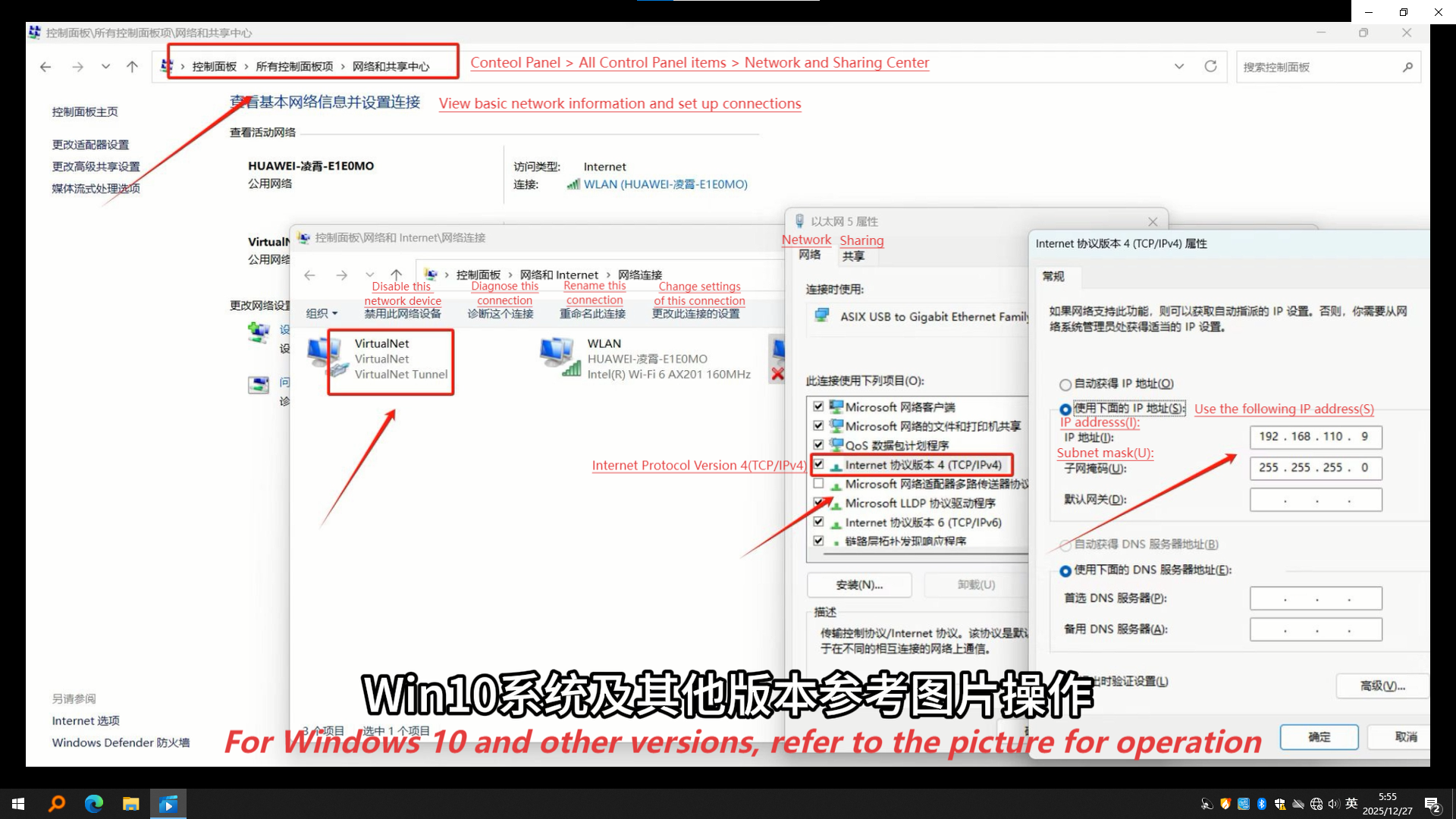
Print misalignment adjustment
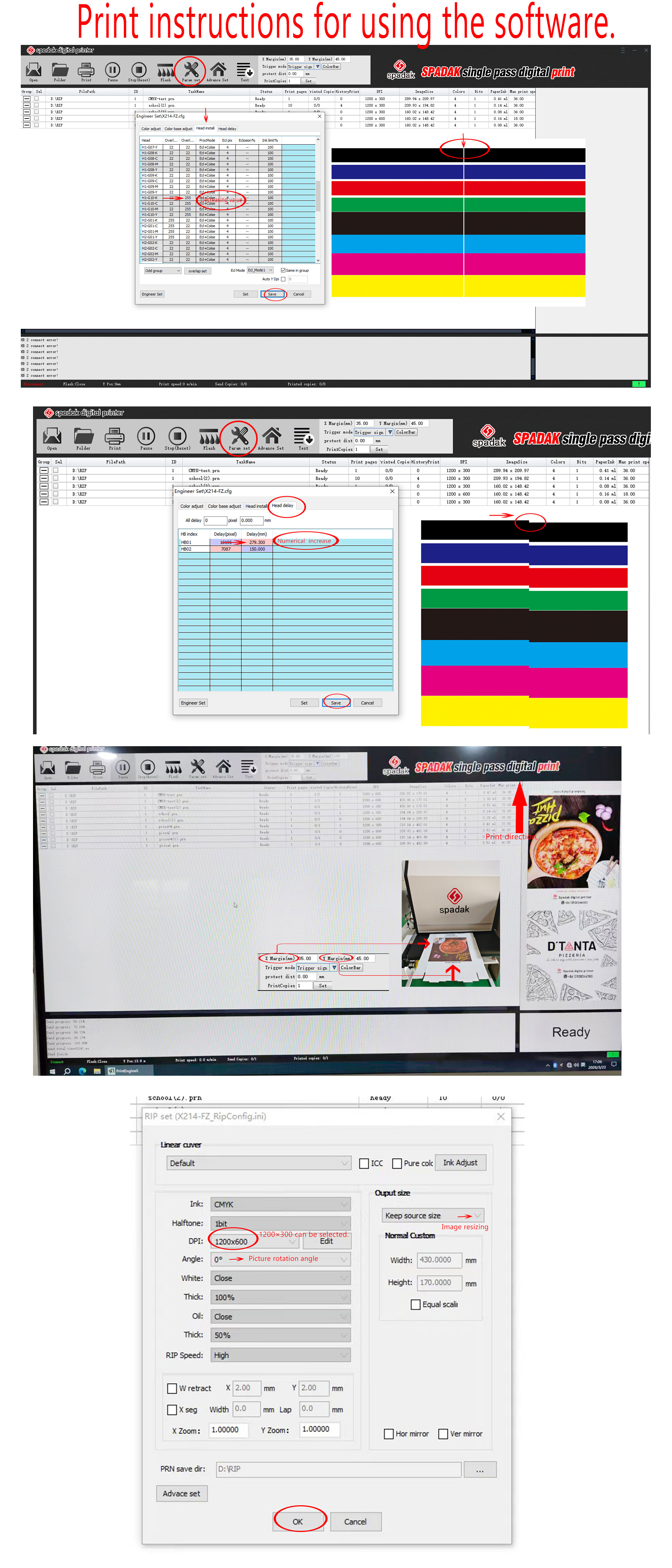
RIP Parameter Settings
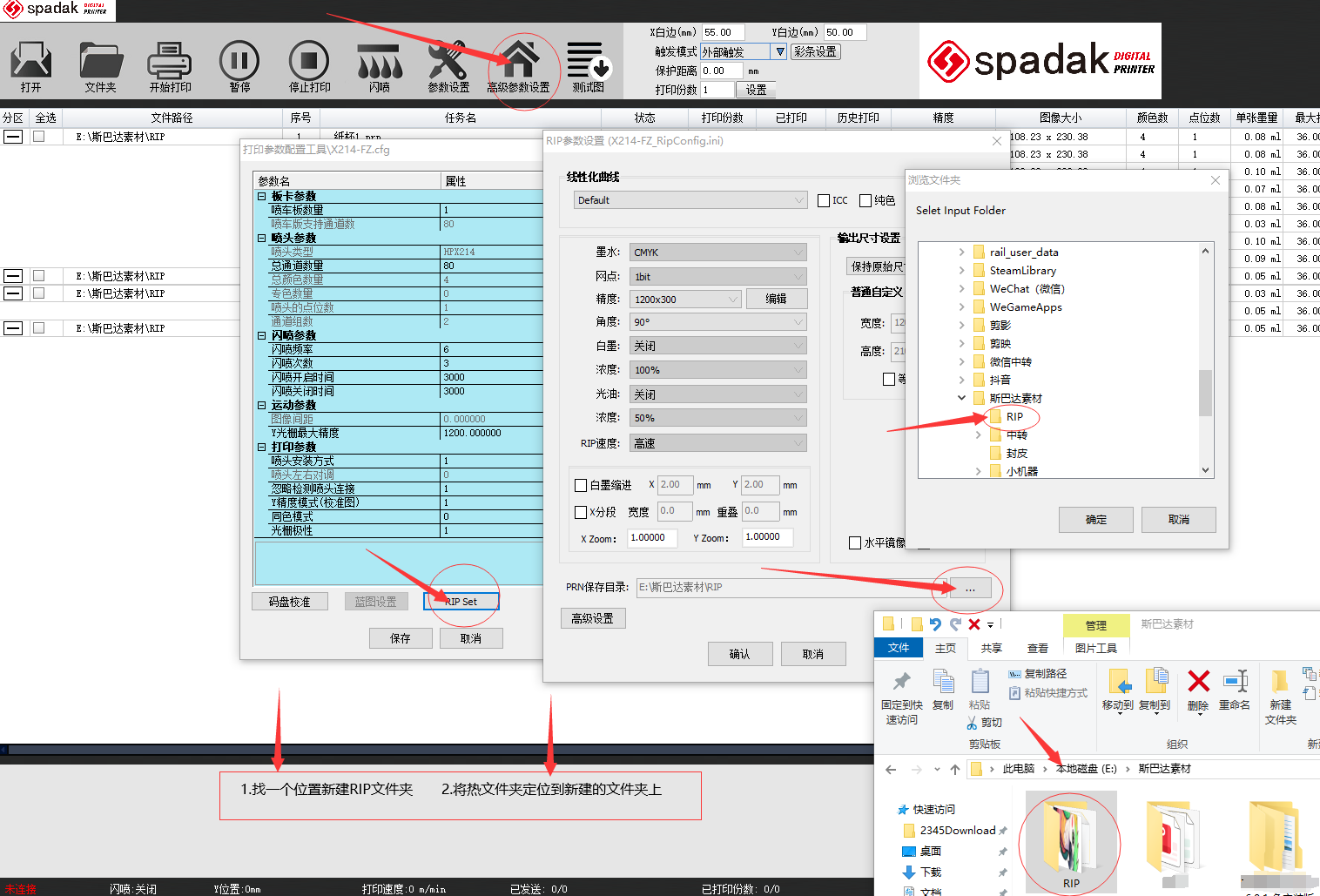
RIP Folder Setup and Hot File Positioning
Multilingual Configuration Guide
Tutorial: Creating Software Language Files and Configuring System Localization
Guide to Creating Multilingual Configuration Files for Software
Open the Language folder, copy the ENU.lan file, and rename it to your target language (e.g., Turkiye.lan).
Open in a text editor, translate the English after the ID into the target language, and save as UTF-8.
Note: IDs 10040-10043, 10128-10130, 10059-10060, and 23001-32047 do not support low-resource languages; keep in English.
Place the language file in the Language folder, select the desired language in the software, and restart.
Windows 11 System Language Configuration - Korean (or target language)
Open System Settings → Time & Language → Language & Region
Click "Manage Language Settings"
Select South Korea (or target country)
Restart the system, then launch the software.
Need more help?
Download NetEase UU Remote. Our support team is ready to provide professional guidance anytime.
Remote Assistance Guide
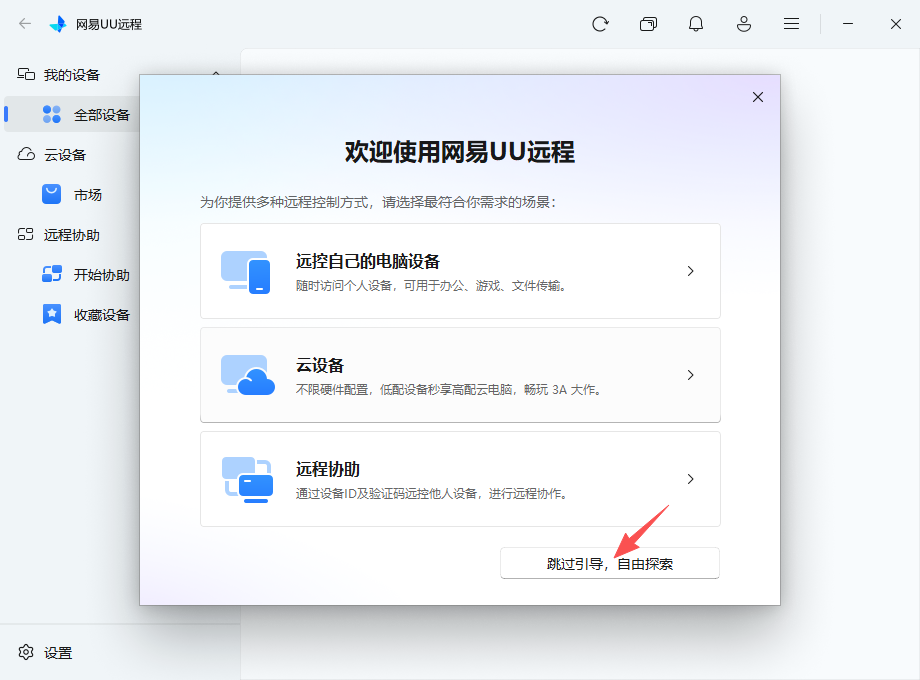
Step 1: Open the app and select "Skip onboarding, explore freely".
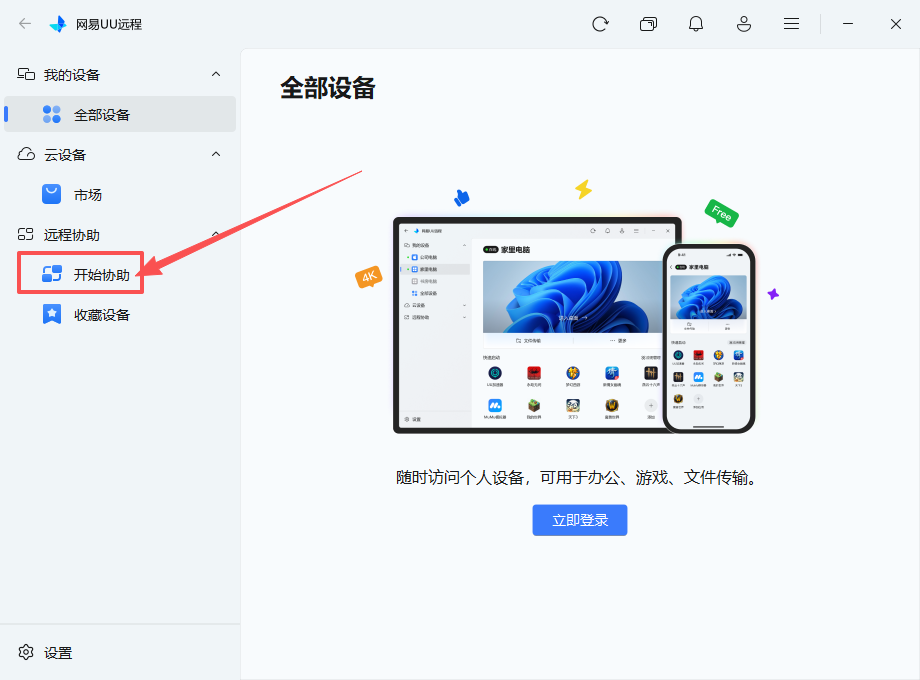
Step 2: Click "Remote Assistance" on the left, then "Start Assistance".
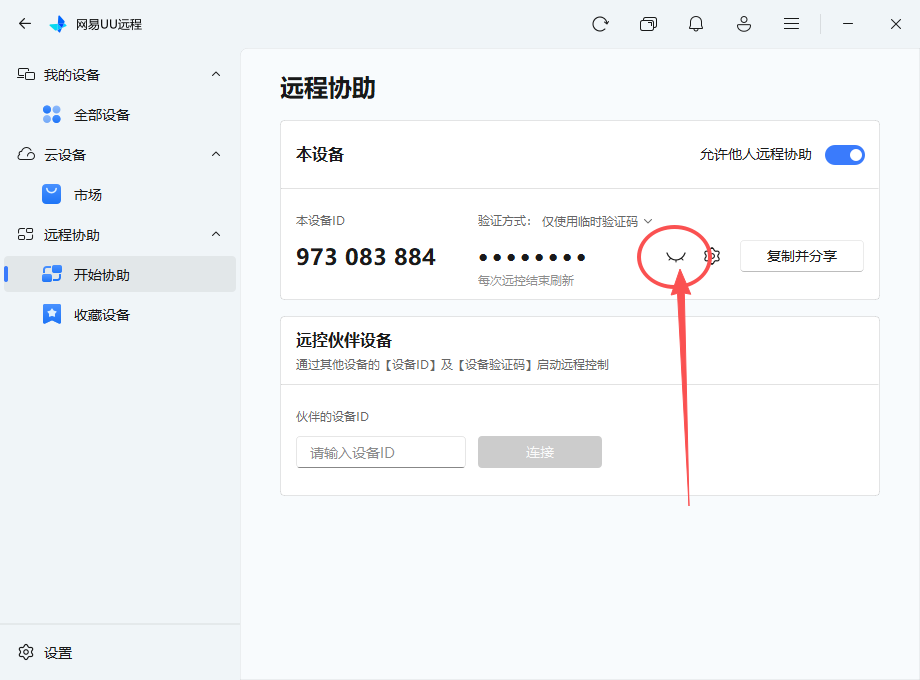
Step 3: Click the eye icon to view the temporary verification code.
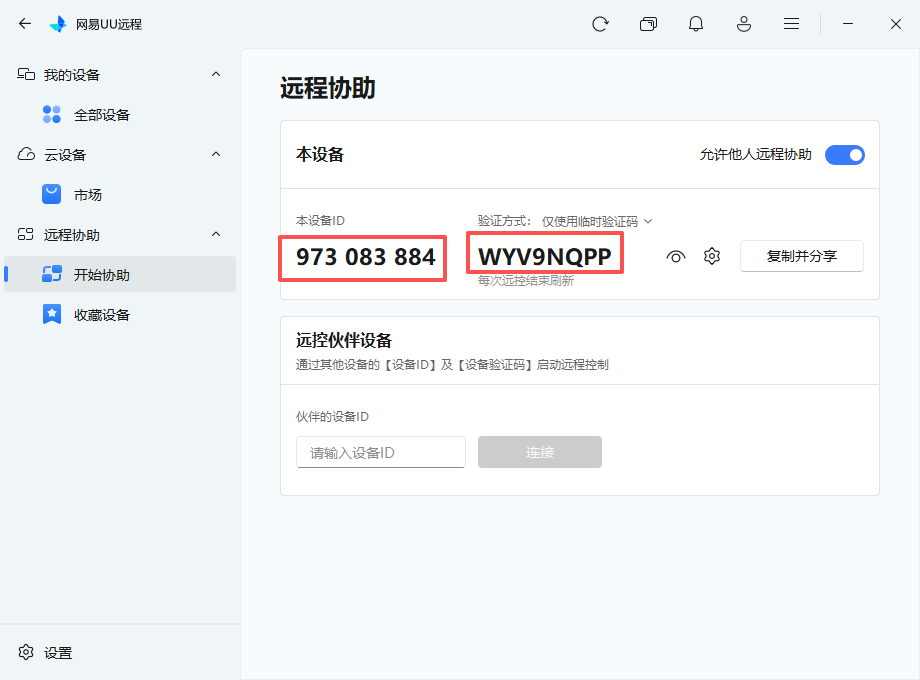
Step 4: Send the device ID and verification code to technical support.
Disclaimer: This website has no affiliation with NetEase UU. We only recommend its remote connection tool to users and assume no commercial liability or legal responsibility.